
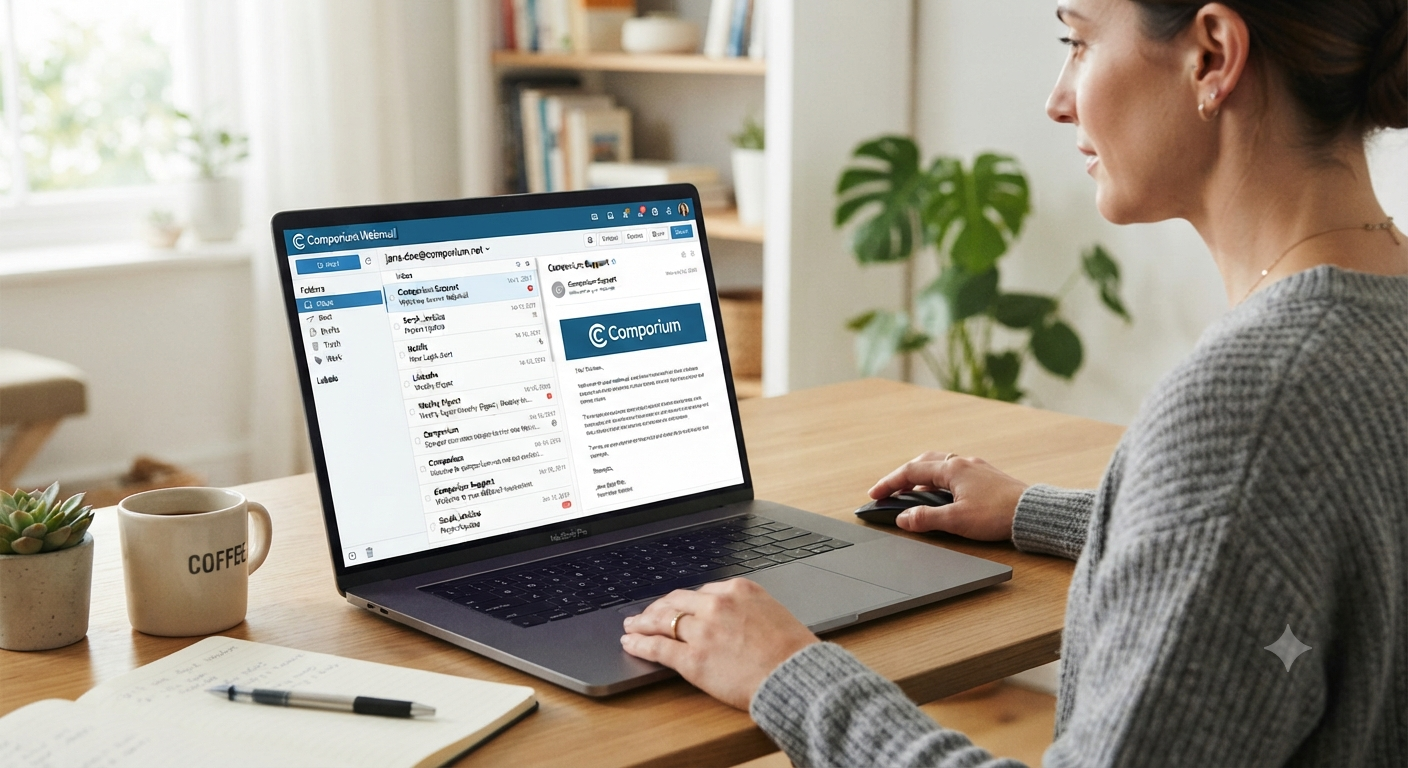
Webmail Comporium Net is the browser-based access point for existing Comporium.net email accounts. It lets users read, send, organize, and search messages without installing Outlook, Apple Mail, Thunderbird, or another email application.
The official starting point is webmail.comporium.net. Comporium’s Help Center directs subscribers to that address and provides an alternative access route if the primary login page cannot be reached.
This guide covers the login process, password recovery, official server settings, phone and computer setup, security, and the most common sending or receiving failures.
What Is Webmail Comporium Net?
Webmail Comporium Net is a web interface connected to a Comporium.net mailbox. Because it runs in a browser, it works without manually entering IMAP, POP, or SMTP settings.
It is not the same as My Comporium. Webmail handles messages and folders, while My Comporium provides customer account and service-management tools, including the route used to manage an email password.
The portal is primarily relevant to existing account holders. Comporium says it stopped issuing new Comporium.net email accounts and stopped reactivating inactive accounts on February 1, 2022, making existing addresses a legacy service that deserves careful maintenance.
How to Log In to Webmail Comporium Net Safely
Follow these steps to access Webmail Comporium Net:
- Open an updated browser.
- Type
webmail.comporium.netdirectly into the address bar. - Confirm that the browser shows a secure connection.
- Enter the complete Comporium.net email address if requested.
- Enter the current email password and select Login.
- Sign out after using a shared or public device.
Comporium’s official help content identifies that domain as the webmail destination. Creating a bookmark from the verified page is safer than repeatedly searching for a login page, where advertisements or look-alike results may appear.
Never enter credentials through an unexpected “mailbox full,” “account suspended,” or “password expiring” email. The FTC advises contacting a company through a website or phone number you already know is genuine rather than using contact details or links inside a suspicious message.
Webmail Comporium Net vs. My Comporium
The names are similar, but each portal serves a different purpose.
| Portal | Main purpose | Common tasks |
|---|---|---|
| Webmail | Mailbox access | Read, send, search, and organize email |
| My Comporium | Account management | Manage services and change an email password |
| Help Center | Support information | Find setup, filter, phishing, and troubleshooting guidance |
If Webmail Comporium Net rejects a newly changed password, confirm that you changed the email password rather than only the My Comporium login. Comporium directs users to the services section of My Comporium to manage an email password.
Fixing Webmail Comporium Net Login Problems
A failed sign-in does not automatically mean the mailbox is gone. Work through these checks in order.
Re-enter the Full Address
Some forms accept a username, while others expect the complete address ending in @comporium.net. Remove spaces, check the spelling, and verify the domain before trying again.
Check Caps Lock and Saved Credentials
A browser may autofill an old password after it has been changed elsewhere. Delete the filled value, type the password manually, and make sure Caps Lock is off.
Test a Private Window or Another Browser
Expired cookies, cached sessions, extensions, script blockers, or an outdated browser can interfere with a login page. If a Private or Incognito window works, clear the stored site data for the webmail domain.
Testing a second browser or device also helps determine whether the problem is connected to the mailbox or only to one browser installation.
Verify the Password Through My Comporium
Comporium says users can manage an email password through the services area of My Comporium. If that portal is also inaccessible, use its official recovery option or contact support instead of repeatedly guessing passwords.
Repeated incorrect attempts may create more confusion, especially when different devices still have an old password saved.
Consider Account Inactivity
Comporium’s acceptable-use policy says a free email-only account may be terminated after 75 days without activity. Its help content also says inactive Comporium.net accounts are not reactivated, so extended non-use may create an account-status problem rather than a simple browser error.
This distinction is important. Clearing browser cookies will not restore an account that has already been deactivated.
Resetting the Webmail Comporium Net Password
To recover Webmail Comporium Net, use the official account-management route rather than a reset link received in an unsolicited email.
- Sign in to My Comporium.
- Open the services area.
- Locate the email account.
- Choose the password-management option.
- Create a unique password.
- Update that password on every connected device and mail application.
Comporium confirms that email passwords are managed through My Comporium’s services page. After a password change, an old credential stored in Outlook, Apple Mail, or an Android email app may continue causing authentication failures until each device is updated.
CISA recommends using strong, unique passwords and a password manager. It also recommends multifactor authentication where a service offers it, although users should check the current Comporium account options rather than assume every legacy mailbox supports identical security features.
Official Webmail Comporium Net Email Settings
You do not need server settings when using Webmail Comporium Net in a browser. You need them when adding the account to an email application.
Comporium publishes the following desktop settings for clients that support POP3, IMAP, and SMTP.
| Function | Server | Port | Security | Authentication |
| IMAP incoming | mail.comporium.net |
993 | SSL on | Full email address and password |
| POP incoming | mail.comporium.net |
995 | SSL on | Full email address and password |
| SMTP outgoing | smtp.comporium.net |
465 | SSL on | Required |
| iPhone SMTP default | smtp.comporium.net |
587 | SSL on | Required |
Comporium also lists port 587 as the default iPhone SMTP configuration. If an application automatically selects different values, compare them with the official settings before changing unrelated options.
Should You Use IMAP or POP?
For most users, IMAP is the better choice because it keeps messages and folders synchronized across webmail and multiple devices. Actions such as moving, reading, or deleting a message are generally reflected on other devices connected to the mailbox.
POP is designed around downloading email to a device. Depending on the application’s settings, downloaded messages may be removed from the server and disappear from webmail or other devices.
Choose IMAP when you use both Webmail Comporium Net and a phone or desktop application. Choose POP only when you understand its download-and-storage behavior and maintain a reliable local backup.
Setting Up Comporium Email on a Phone or Computer
The menu names differ by device, but the core process is consistent:
- Open the mail or account settings.
- Select Add Account, followed by Other or Manual Setup.
- Enter the full Comporium.net email address and current password.
- Choose IMAP for multi-device synchronization.
- Use
mail.comporium.net, port 993, with SSL enabled. - Use
smtp.comporium.net, port 465 or the device-specific port published by Comporium. - Enable outgoing-server authentication.
- Use the full email address and password for incoming and outgoing login.
- Save the account and send a test message.
Comporium’s Android guidance uses manual setup and an IMAP account, while its general setup page says the published settings work with email clients supporting POP3, IMAP, and SMTP.
Do not delete a working account profile until you know the current password. Removing the profile first may leave you unable to recreate the connection if the password or account status is uncertain.
Troubleshooting Sending and Receiving Errors
Webmail Comporium Net is a useful diagnostic tool. If webmail works but a mail application does not, the mailbox is likely active and the fault is more likely to involve the saved password, server address, port, SSL setting, or authentication.
Receiving Works, but Sending Fails
Check the outgoing server first. It should be smtp.comporium.net, SMTP authentication must be enabled, and the client should use the full email address and password.
Comporium’s published desktop configuration uses port 465 with SSL. The company also advises checking account settings and confirming the correct outgoing server when sending produces an error.
Remove any old outgoing server left from a previous internet provider. Some devices silently continue using the wrong SMTP profile even when the incoming account is configured correctly.
Sending Works, but Receiving Fails
Verify that the incoming server is mail.comporium.net. Use IMAP port 993 or POP port 995, with SSL enabled, according to the selected account type.
If another computer uses POP, check whether it downloads and removes messages from the server. That behavior can make mail appear on one computer but not in webmail.
The Password Keeps Failing
Update the password in both incoming and outgoing settings. Many applications store the SMTP password separately, so correcting only the incoming password may fix receiving while sending continues to fail.
Also check older phones and tablets. A forgotten device that repeatedly submits the old password can make diagnosis more difficult.
Folders Are Missing in the Application
Confirm that the account uses IMAP, then review folder subscriptions and synchronization settings. Sent, Drafts, Trash, and custom folders may not appear until the client maps or subscribes to the server folders correctly.
Compare the folders shown in the application with those visible through Webmail Comporium Net. This makes it easier to identify a synchronization problem rather than mistakenly assuming messages were deleted.
Security Tips for Webmail Comporium Net Users
A mailbox often receives password-reset links for other accounts, so an email compromise can spread quickly. The FTC recommends reviewing email settings for unauthorized forwarding rules after an account takeover.
Protect Webmail Comporium Net with these habits:
- Bookmark the verified login page.
- Use a unique password stored in a reputable password manager.
- Keep the browser, phone, and mail application updated.
- Do not approve unexpected password-reset requests.
- Avoid unfamiliar links and attachments.
- Verify urgent billing or suspension messages through official support.
- Review Sent, Trash, filters, and forwarding rules after suspicious activity.
- Sign out of shared devices.
- Never reuse the email password for banking or shopping accounts.
CISA identifies strong passwords, phishing awareness, multifactor authentication, and software updates as core online-safety practices. The FTC warns that phishing messages often create urgency around billing, account, or login problems to pressure users into opening malicious links or attachments.
Warning Signs of a Fake Login Page
A fraudulent page may look convincing, but several details should make you pause:
- The domain contains extra words, misspellings, or unusual characters.
- The page was opened through an unexpected email.
- The message claims immediate account closure unless you sign in.
- You are asked for payment details on an email login screen.
- The browser presents a certificate or security warning.
- The page requests a verification code that you did not initiate.
Do not rely only on the page’s logo or colors. Scammers can copy visual branding, while the domain and the route used to reach the page provide stronger clues.
Legacy-Account Planning
Comporium’s statement that new Comporium.net accounts are no longer issued changes how users should manage an existing address. Losing access may be more disruptive when the provider will not create or reactivate the mailbox.
Audit where the address is used before closing services or leaving it inactive. Add a second recovery address to important accounts, export essential contacts, update critical services to a long-term email address, and keep a record of subscriptions that still rely on Comporium mail.
This is especially important when Webmail Comporium Net receives banking notices, healthcare messages, shopping receipts, or account-recovery links. Treat it as an identity-recovery asset, not merely an old inbox.
A practical continuity checklist includes:
- Add an alternative recovery email to financial and social accounts.
- Update accounts that use the Comporium address as their only recovery method.
- Export valuable correspondence and contact information.
- Check the mailbox regularly to avoid prolonged inactivity.
- Record which devices and applications are connected.
- Remove access from devices you no longer own.
- Inform important contacts before migrating to another address.
When to Contact Comporium Support
Contact support when valid credentials still fail after an official password reset, the mailbox appears inactive, correct server settings continue producing authentication errors, or you suspect unauthorized access.
Comporium lists live assistance and 24/7 support resources, including the main number 1-888-403-2667. Regional numbers may also be available, so use the official contact page rather than a number supplied in an email, pop-up, or search advertisement.
Before contacting support, record:
- The affected email address
- The exact error message
- The device and operating system
- The browser or mail application
- Whether browser-based webmail works
- Any recent password or service changes
- Whether sending, receiving, or both have failed
Never email your password or share it with an unsolicited caller. A legitimate troubleshooting process should not require you to disclose your complete password.
Frequently Asked Questions
Is Webmail Comporium Net the Official Email Login?
Yes. Comporium’s Help Center directs users to webmail.comporium.net for browser-based access to a Comporium.net mailbox and mentions an alternative route if the primary page is unavailable.
Type the address directly into your browser or use a bookmark created from the verified page. Avoid signing in through unexpected messages.
Why Can I Access My Comporium but Not Webmail?
The portals have different purposes. My Comporium is used for service and account management, while webmail provides access to messages and mailbox folders.
Verify the email password through My Comporium’s services area. Then enter the complete Comporium.net address and updated password on the webmail page.
What Are the Correct IMAP and SMTP Settings?
Use mail.comporium.net, port 993, with SSL for IMAP. For outgoing mail, use smtp.comporium.net, port 465, with authentication required.
Comporium also lists port 587 as the iPhone default SMTP setting. Use the complete email address and password when the application requests authentication credentials.
Can I Create a New Comporium.net Email Account?
Comporium says it stopped issuing new Comporium.net email accounts on February 1, 2022. The company also states that inactive accounts are not reactivated.
Existing users should therefore protect their access, maintain recovery options, and avoid relying exclusively on the address for important account recovery.
What Should I Do After Clicking a Suspicious Login Link?
Close the page and access Webmail Comporium Net by typing the verified address yourself. Change the password through the official account portal, review forwarding rules and Sent mail, scan the device, and contact Comporium through a verified channel if credentials were disclosed.
The FTC recommends using known, genuine contact methods instead of information inside the suspicious message. It also recommends reviewing email settings after a suspected account compromise.
Conclusion: Use the Official Portal and Protect the Account
Webmail Comporium Net becomes easier to manage once you separate three functions: webmail for messages, My Comporium for account and password management, and the Help Center for setup and troubleshooting. Bookmark the official login page, confirm the password, and use Comporium’s published IMAP and SMTP settings when connecting an application.
Then protect the mailbox like a digital key. Use a unique password, update recovery options, inspect forwarding rules after suspicious activity, and migrate important accounts away from single-point dependence on a legacy address.
If access still fails after completing these checks, contact Comporium through its official support page or verified customer-support number.












Leave a Reply