
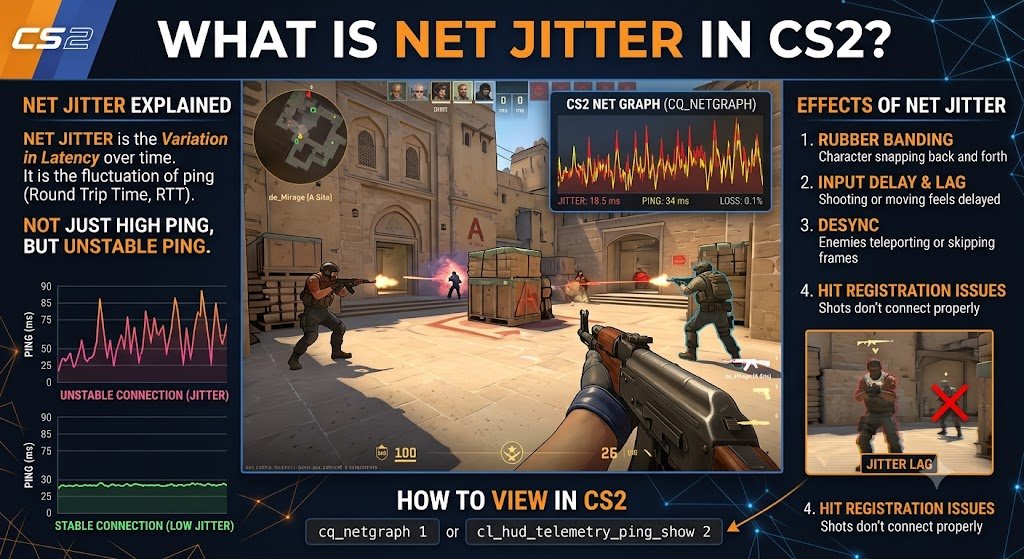
If you are searching what is net jitter CS2, you are probably seeing red telemetry bars, unstable movement, delayed feedback, or a match that feels bad even though your ping looks acceptable. Net jitter is not simply “high ping.” It is the variation in how long consecutive network packets take to travel between your computer and the Counter-Strike 2 server.
That distinction matters. A steady 45 ms connection can feel more predictable than one that repeatedly jumps between 18 ms and 70 ms because game updates reach your PC at inconsistent intervals. Valve’s telemetry tools therefore display jitter separately from packet loss and ordinary latency.
What Is Net Jitter CS2 in Simple Terms?
The clearest answer to what is net jitter CS2 is that packets are arriving, but their timing is inconsistent. Networking standards define jitter through packet delay variation—the difference between the delays experienced by packets travelling across the same path.
Imagine receiving one update every second. If updates arrive at 1.00, 2.00, 3.00 and 4.00 seconds, delivery is stable; if they arrive at 1.00, 2.40, 2.65 and 4.20 seconds, the spacing is erratic even if the average delay does not look disastrous.
CS2 relies on time-sensitive messages carrying player inputs, positions and game-state changes. When their arrival time swings, the game may buffer traffic, process updates unevenly or risk missing the intended simulation moment.
What Is Net Jitter CS2 Compared With Ping and Packet Loss?
Players often mix these terms together, but they describe different problems:
- Ping or latency: The travel time between your system and the server.
- Jitter: How much packet travel time changes from one message to the next.
- Packet loss: Data that never reaches its destination.
- Packet reordering: Packets that arrive in an unexpected sequence.
- Tick miss: An update that was unavailable at the intended processing moment.
Valve separates ping, loss, jitter and miss in the detailed network display. Its documentation also notes that visible jitter or loss does not automatically mean gameplay was affected when the tick-miss rate remains at zero.
Why Net Jitter Feels So Bad in Counter-Strike 2
To understand what is net jitter CS2 from a player’s perspective, focus on predictability. Counter-Strike rewards precise timing, so counter-strafing, peeking, tracking and shot feedback feel worse when updates arrive irregularly.
Common symptoms include:
- Players appearing to speed up, stop or shift unevenly
- Sticky movement despite a high frame rate
- Brief rubber-banding or position correction
- Delayed weapon-switch, jump or grenade feedback
- Red telemetry spikes during fights
- A poor connection feeling while average ping stays low
These symptoms can also come from low FPS, frame-time spikes, packet loss, input latency or server problems. Use telemetry to confirm the network side instead of assuming every stutter is jitter.
Can Low Ping Still Feel Bad?
Yes. A 20 ms ping can look excellent while some packets suddenly take 50, 80 or 120 ms. The average remains attractive, but the delivery rhythm becomes unstable.
That is why what is net jitter CS2 cannot be answered with “your internet is slow.” Your bandwidth may be sufficient while Wi-Fi interference, congestion, routing or upload saturation makes packet timing inconsistent.
How CS2 Displays Network Jitter
For players researching what is net jitter CS2, the built-in display is the best place to separate a real network issue from guesswork. CS2 includes a Telemetry HUD under Settings > Game > Telemetry.
Valve says the HUD can monitor frame rate and network conditions, with a real-time graph and a detailed numeric display available for diagnosis.
The Network jitter/misdelivery graph represents network messages as bars. Valve explains that bar height reflects jitter, red vertical lines identify dropped messages, purple lines identify reordered messages, and red jitter bars indicate increased risk of missing the relevant tick.
The horizontal warning threshold is not a universal “bad internet” line. It depends partly on the buffering setting, and crossing it does not prove that a tick was missed.
How to Read the Numeric Display
When investigating what is net jitter CS2, watch how four values interact:
- Ping: Is baseline latency stable?
- Loss: Are packets disappearing?
- Jitter: How large are the timing variations?
- Miss: Are conditions actually causing missed processing opportunities?
A short jitter peak with zero misses may be absorbed successfully. Repeated spikes, visible corrections and rising miss values are stronger evidence that the connection is affecting play.
What Is a Good Net Jitter Value in CS2?
There is no single official number that guarantees a perfect match. Impact depends on baseline latency, spike frequency, buffering, packet loss and whether delayed messages still arrive before they become useless.
As a practical guide—not an official Valve rating:
- 0–5 ms: Usually very stable
- 5–10 ms: Often acceptable
- 10–20 ms: Potentially noticeable when frequent
- 20–40 ms: Likely disruptive when sustained or spiky
- Above 40 ms: A strong reason to investigate
When answering what is net jitter CS2, outcome matters more than one peak. Valve’s explanation focuses on whether jitter is high relative to available buffering and whether ticks are actually missed.
A brief 25 ms spike with no loss or missed ticks may not create an obvious problem. Constant 12–15 ms variation combined with movement corrections could be far more disruptive.
What Causes Net Jitter in CS2?
A complete explanation of what is net jitter CS2 must identify where inconsistent delay begins. The cause may sit inside your home network, at your internet service provider, along the route to Valve’s infrastructure, or at a particular server location.
Wi-Fi Interference
Wi-Fi packets share radio airtime. Weak signal, neighboring networks, walls, retransmissions and crowded channels can make some packets wait much longer than others.
Ethernet is the best first comparison. If jitter disappears on a cable, the local wireless environment is the likely source.
This does not necessarily mean your Wi-Fi speed is low. A wireless connection can deliver hundreds of megabits per second and still have unstable packet timing.
Upload Saturation and Bufferbloat
Cloud backups, livestreaming, video calls and large uploads can fill a router’s queue. Game packets then wait behind bulk traffic, creating sharp variations in lag despite a speed test showing good bandwidth.
This issue is also called bufferbloat and is the reason why some connections see worse performance than a speed test would suggest.
Upload saturated connections are especially punishing as most home connections have significantly more download than upload bandwidth, meaning a single backup or large upload can easily hurt a competitive game more than several users browsing the web.
Household and Background Traffic
Game downloads, operating-system updates, cloud drives and other users’ traffic may create bursts of congestion. Older routers can struggle to schedule competing traffic fairly.
Check Task Manager’s network column and pause nonessential traffic on every device you control. The useful clue is whether jitter drops when the network becomes quiet.
ISP Congestion or Bad Routing
If Ethernet does not help and the issue mainly appears during evening hours, the bottleneck may be outside your home. Neighborhood congestion, route changes or an inefficient path to the selected server can create unstable latency.
This type of problem can be difficult to solve locally. Evidence collected at different times of day becomes important when reporting it to an ISP.
VPNs and Distant Server Regions
A VPN adds another network path and can either improve or worsen routing. Test it; do not assume it is automatically a fix.
A distant server also raises baseline latency, while a poor route to that region may add jitter. Lowering the acceptable matchmaking ping can reduce distant placements, although the nearest server is not always the best-routed one.
Faulty Cables or Network Hardware
Damaged Ethernet cables, overheating routers, unstable modem connections or outdated network drivers may cause intermittent communication problems. These faults often produce packet loss as well as jitter.
Replace questionable cables and test another router port before changing advanced software settings. Simple physical checks can eliminate hours of unnecessary troubleshooting.
How to Fix Net Jitter in CS2
The solution to what is net jitter CS2 starts with isolating the source rather than copying random settings. Once you understand the metric, change one variable at a time.
Controlled testing is faster than applying a long list of unrelated “optimizations.” It also lets you reverse changes that provide no measurable benefit.
1. Enable Detailed Telemetry
Open Settings > Game > Telemetry and use the detailed network view. Record ping, peak jitter, loss and miss during live action—not only while standing in spawn.
Observe the graph for several rounds. One isolated spike is less useful than a repeating pattern that appears whenever the match becomes busy.
2. Test a Wired Connection
Connect the PC directly to the router and temporarily disable Wi-Fi. Play under similar conditions and at roughly the same time of day.
A major improvement points toward signal quality, interference, wireless congestion or access-point roaming. You can then focus on router placement, frequency bands or wireless channels.
3. Stop Competing Traffic
Pause cloud sync, downloads, updates, streams and large uploads across the household. Re-enable them one at a time until the spikes return.
This turns what is net jitter CS2 from a vague question into a repeatable diagnosis. For example, if the problem returns immediately when a cloud backup starts, you have identified a queueing issue.
4. Restart and Update Network Equipment
Restart the modem and router to clear temporary faults, then check the manufacturer’s official firmware page. A restart will not permanently fix weak hardware or overloaded queues, but it creates a clean baseline.
Also restart the PC before testing. This helps stop forgotten background downloads, VPN processes or network services that may have become unstable.
5. Use Smart Queue Management
Routers offering SQM, CAKE, FQ-CoDel or effective QoS can stop bulk transfers from monopolizing queues. Configure limits slightly below your real upload and download capacity so the router controls scheduling before an oversized upstream queue does.
Good queue management is usually more useful than a vague “gaming mode” that simply prioritizes one device. The goal is consistent packet scheduling, not unlimited priority for every process running on the computer.
6. Test CS2’s Buffering Setting
Valve provides Buffering to smooth over packet loss/jitter. Its documentation says extra buffering can absorb delayed packets, while occasional isolated spikes may require more manual buffering than frequent, predictable jitter.
The trade-off is added delay. Start low, increase by one step, and keep the change only when stability improves without making input feel noticeably heavier.
Buffering should be treated as mitigation. It may smooth the symptoms, but it does not remove Wi-Fi interference, fix ISP congestion or repair faulty equipment.
7. Compare Servers and Times
Test an official match, a community server and an off-peak session. Keep the connection type and background activity consistent.
If every game and device degrades at the same hours, collect evidence for your ISP. If only one server region is affected, the problem may be route-specific.
8. Update Network Drivers Carefully
Use drivers from your motherboard, laptop or network adapter manufacturer. Avoid random third-party driver-updater programs.
After updating, repeat the same telemetry test. Keep the new driver only if stability improves or the previous driver had a documented problem.
What Is Net Jitter CS2? A Fast Diagnostic Matrix
Use these patterns to narrow the cause:
- It disappears on Ethernet: Fix Wi-Fi signal, placement or channel congestion.
- It appears during uploads: Enable SQM/QoS or limit upload traffic.
- It rises only at night: Suspect ISP or neighborhood congestion.
- Jitter spikes but miss stays at 0%: CS2 may be buffering successfully.
- Loss and red drop lines appear together: Check Wi-Fi reliability, cables, modem health or ISP delivery.
- Telemetry is clean but the game stutters: Check FPS, frame time, drivers and input latency.
- A VPN improves one route: Your default ISP path may be inefficient; verify over several matches.
- Every server is affected: Focus on the PC, router, modem or ISP connection.
- Only one server is affected: The server or route may be the issue.
The pattern matters more than a single screenshot. Repeat the test long enough to determine what consistently triggers the problem.
Fixes That Usually Miss the Root Cause
Many pages targeting what is net jitter CS2 recommend random console commands or Windows tweaks without showing any measured improvement. Be skeptical of changes that do not affect packet timing.
Usually weak fixes include:
- Changing DNS to solve in-match jitter
- Installing “ping optimizer” software
- Raising process priority as a network fix
- Disabling random Windows services
- Verifying game files for an ISP routing issue
- Buying a faster package without addressing queueing
- Copying outdated network console commands
- Editing the registry without a measurable diagnosis
DNS mainly resolves a server name before the connection is established; it does not normally control the timing of packets already flowing in a match. More raw speed also fails when upload queues remain unmanaged.
Verifying game files can help with damaged local assets, but it cannot repair an unstable Wi-Fi signal or congested ISP route. Match the fix to the evidence.
How to Collect Evidence for Your ISP
A useful what is net jitter CS2 diagnosis should produce evidence that another person can review. Before contacting support, record the date, time, connection type, server region, baseline ping, peak jitter, packet loss and tick misses.
Include whether the PC was on Ethernet and whether household traffic was paused. Valve’s network guidance distinguishes different connection patterns, while its telemetry graph provides visible evidence of delayed, dropped or reordered messages.
Repeat the same test during good and bad periods. Consistent evening degradation over Ethernet gives the ISP far more useful information than “CS2 is lagging.”
Useful evidence includes:
- Screenshots or recordings of the telemetry graph
- Exact dates and local times
- Results from wired and wireless tests
- Confirmation that uploads and downloads were paused
- Examples from multiple CS2 servers
- Tests from another online game or real-time application
- Whether other devices experienced the same delay
Ask the ISP to investigate congestion, line stability and routing rather than only performing a basic download speed test.
FAQ About What Is Net Jitter CS2
Is net jitter the same as packet loss?
No. In what is net jitter CS2, jitter means inconsistent delay, while packet loss means data never arrives.
A connection can suffer high jitter without losing packets. Valve’s telemetry examples specifically demonstrate that high jitter can exist with zero packet loss.
Can I have jitter with low ping?
Yes. Ping may remain low on average while individual messages experience irregular delay.
That produces a connection that looks fast numerically but feels inconsistent during movement and gunfights. Stability is often more important than achieving the smallest possible average ping number.
Does increasing buffering fix CS2 jitter?
It can smooth some connections by waiting longer for delayed messages. Valve says buffering can absorb jitter, but it adds delay and does not repair Wi-Fi interference, congestion or bad routing.
Try the lowest level first. Only increase it when telemetry and gameplay both show a meaningful improvement.
Why are jitter bars red when tick miss is zero?
A red bar means jitter crossed the warning threshold relative to the current buffering configuration. Valve notes that this signals increased risk, not proof of a missed tick.
A zero miss reading suggests the update may still have been processed successfully. This is why players should not treat every red bar as confirmed gameplay damage.
What is the fastest way to find the cause?
For anyone asking what is net jitter CS2, the quickest controlled test is Ethernet plus an otherwise idle connection. Pause downloads, cloud backups, streams and VPN software before playing.
If the issue disappears, reconnect devices and background services one at a time until the spikes return. If it remains over Ethernet with an idle network, compare different servers and times of day.
Conclusion
The practical answer to what is net jitter CS2 is inconsistent packet timing that can make a low-ping connection feel unreliable. One isolated peak matters less than a repeating pattern involving jitter, loss, tick misses and visible gameplay symptoms.
Enable detailed telemetry, test Ethernet, stop uploads, inspect background traffic and configure proper queue management before trying random commands. These steps identify the cause instead of merely hiding it.
Use CS2’s buffering option carefully as a stabilizer. When the problem remains over Ethernet and appears consistently outside your home network, document the results and contact your ISP with clear evidence.











Leave a Reply